Getting Started with CyberShieldMaple
Welcome to simple, powerful cybersecurity. Follow this quick guide to install the agent and secure your devices in minutes.
Download the Setup App
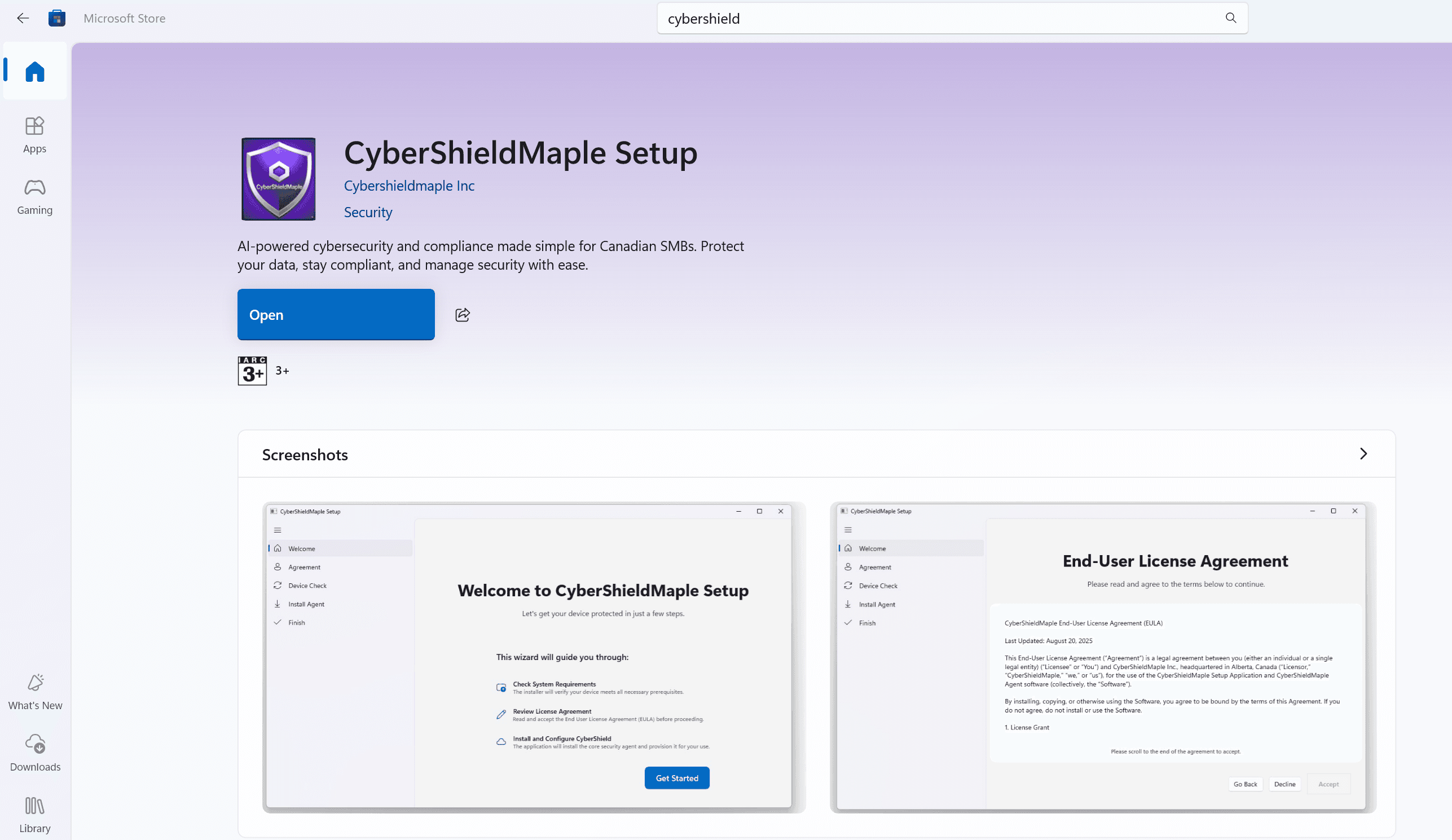
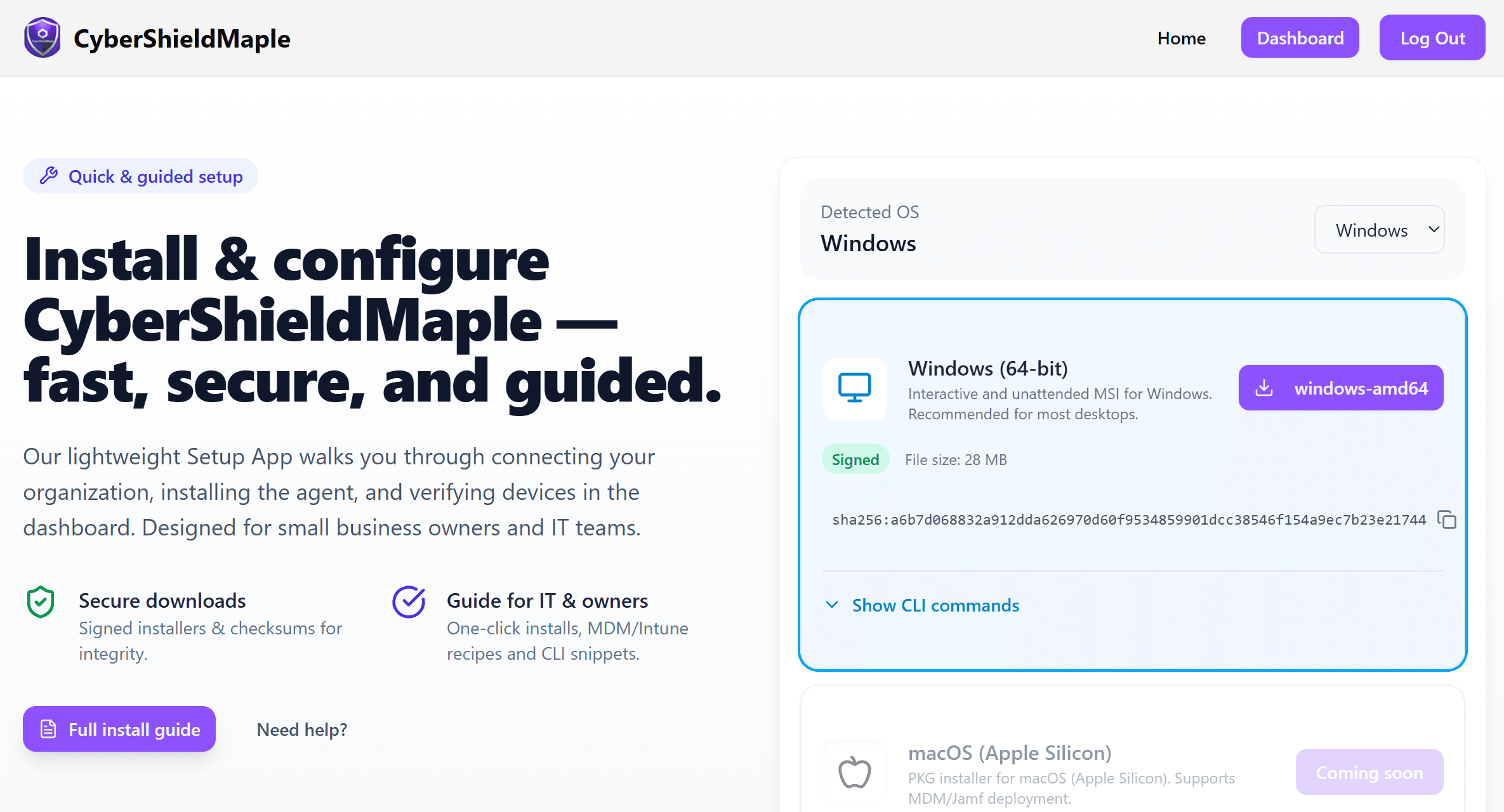
Start by downloading the CyberShieldMaple Setup App from either the Microsoft Store or our website. This app prepares your system for the security agent.
Launch & Begin Setup
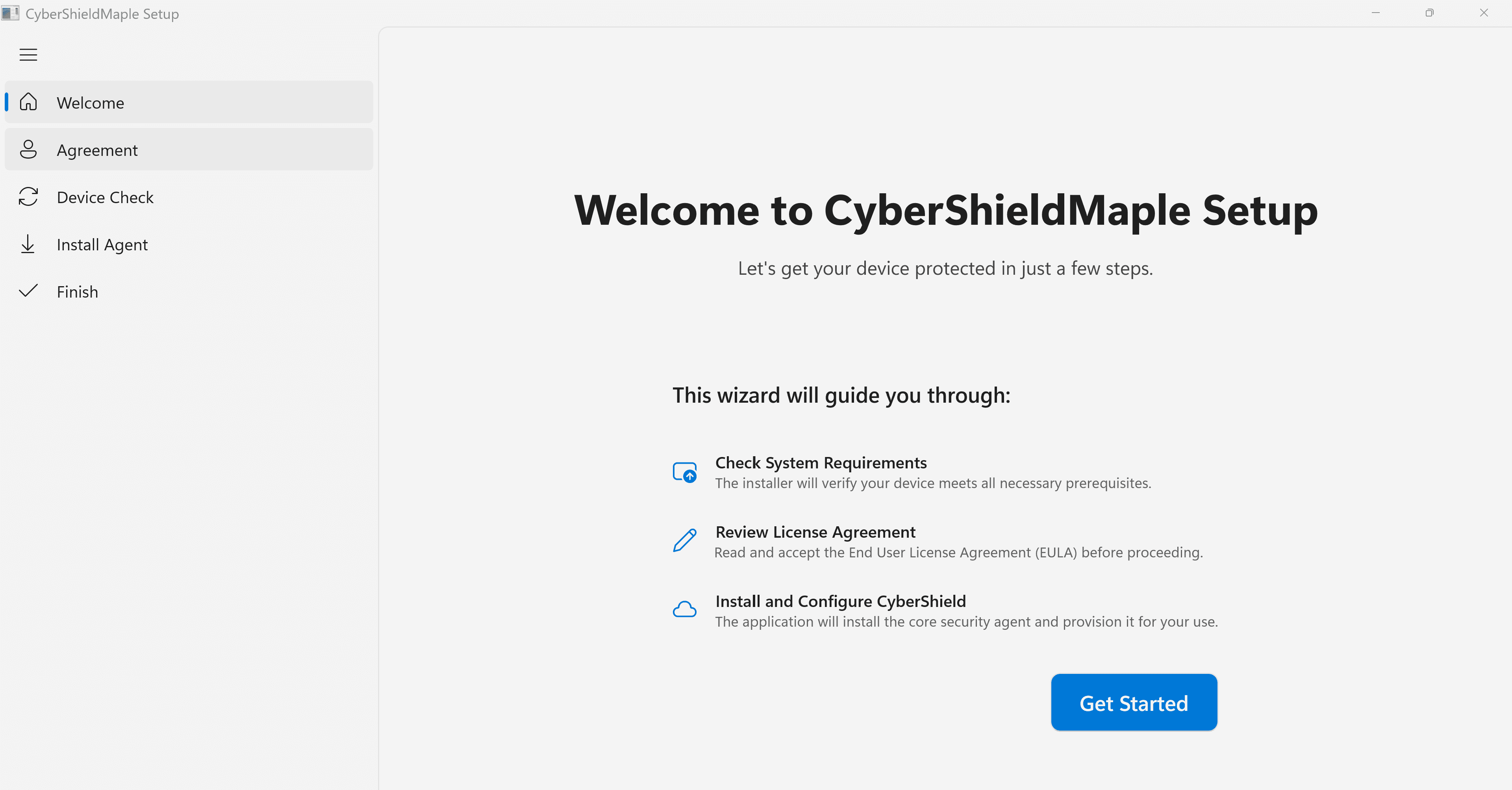
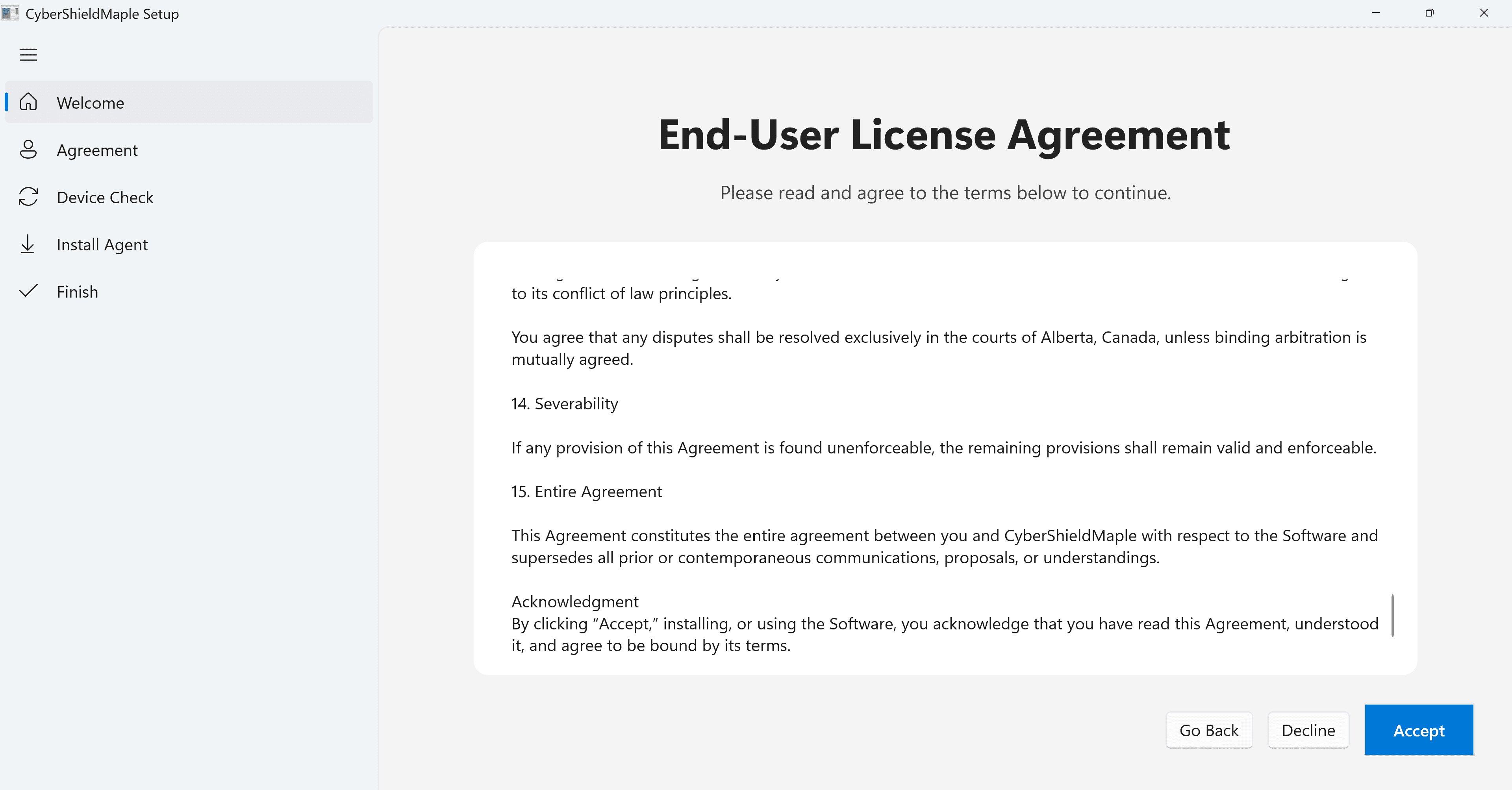
Open the app and click 'Get Started'. Read and accept the End-User License Agreement to proceed with the installation.
Create Your Organization Account
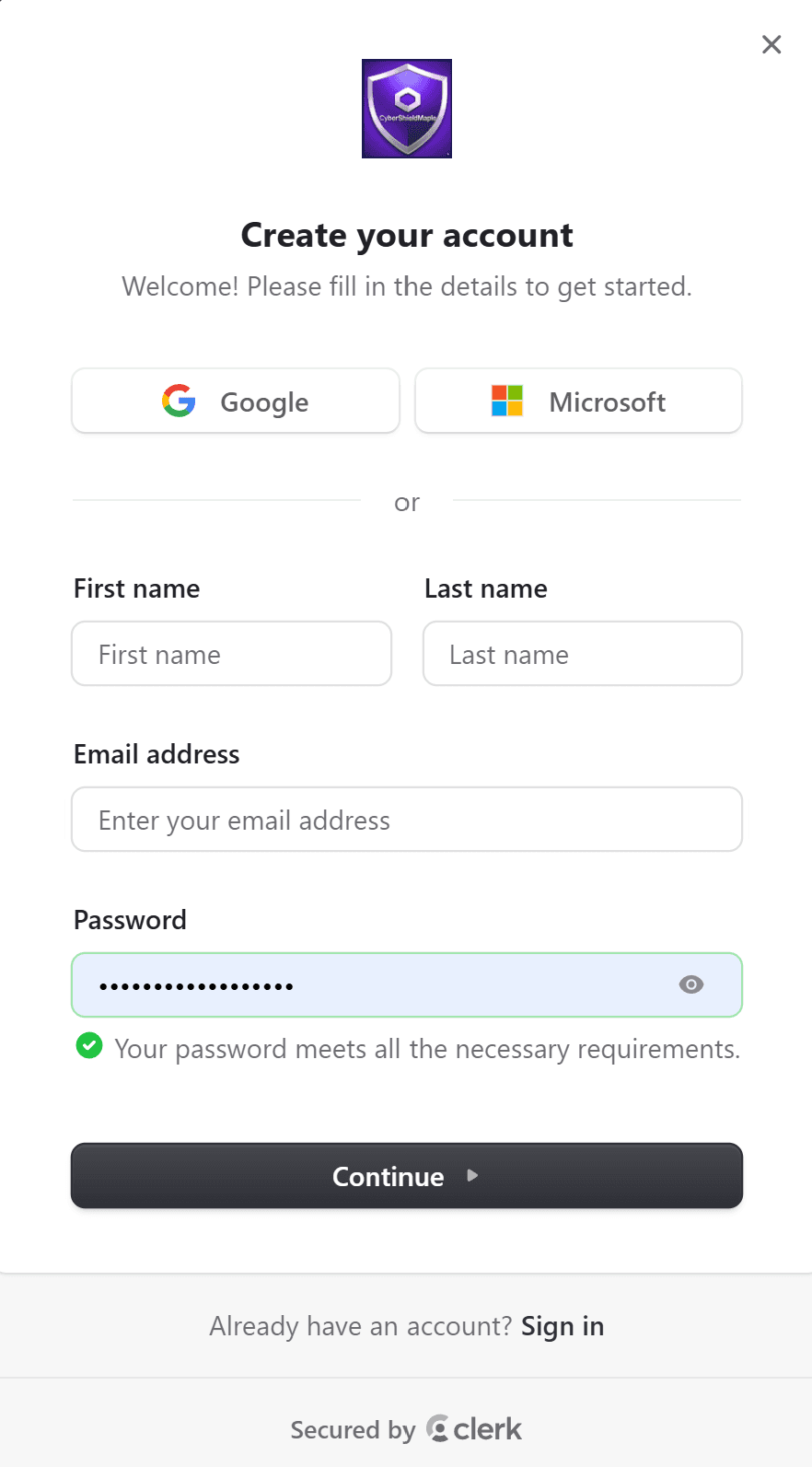
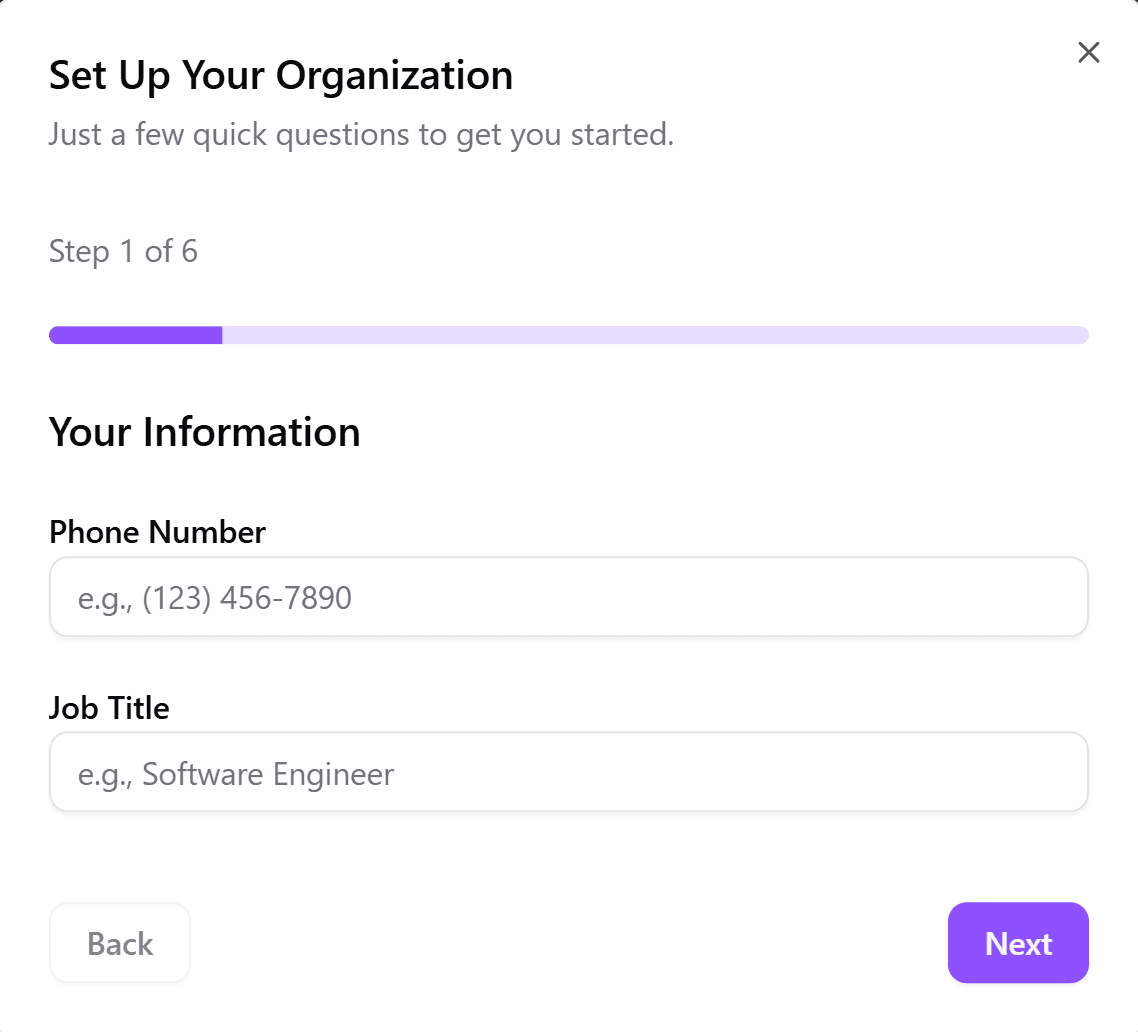
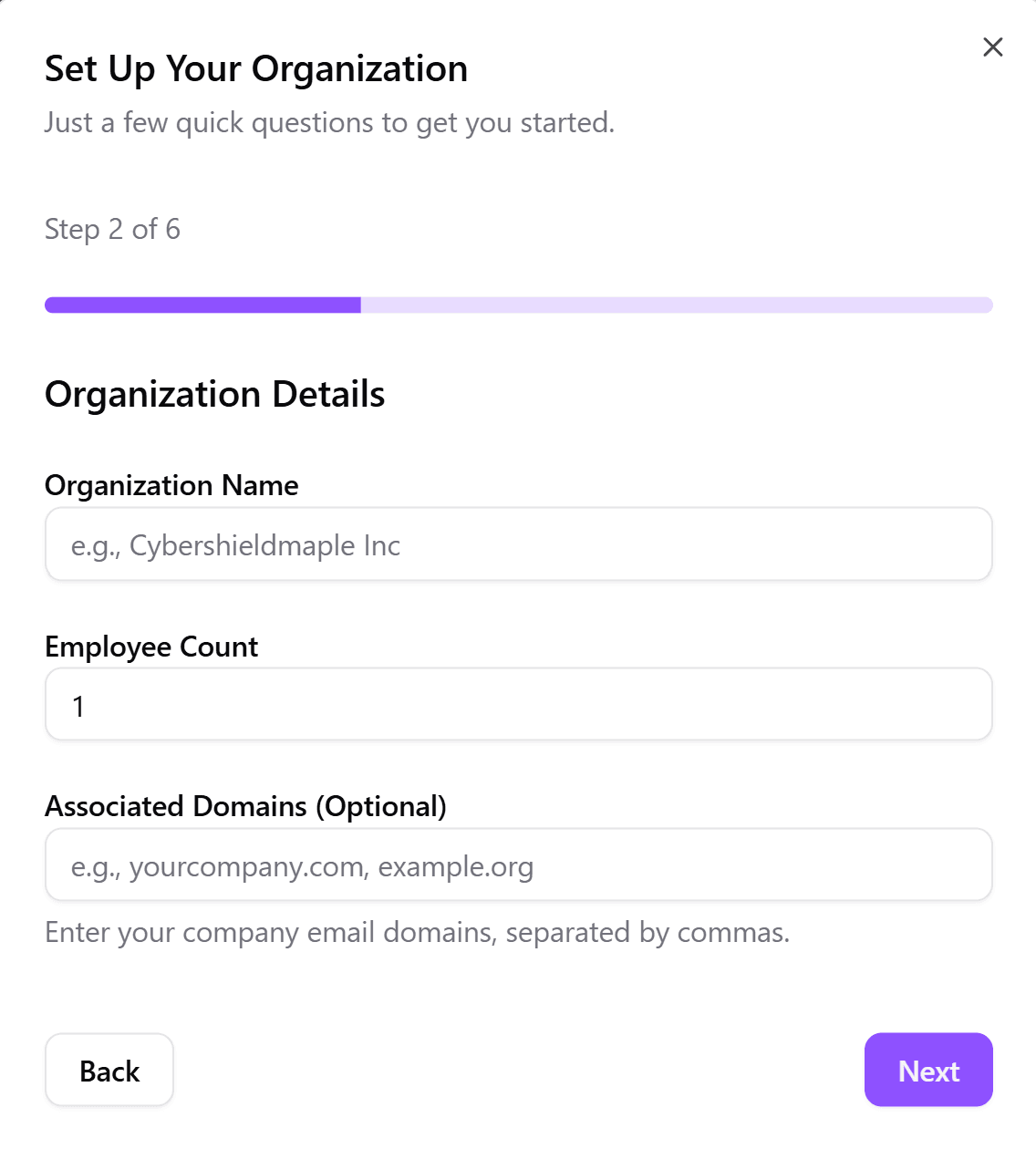
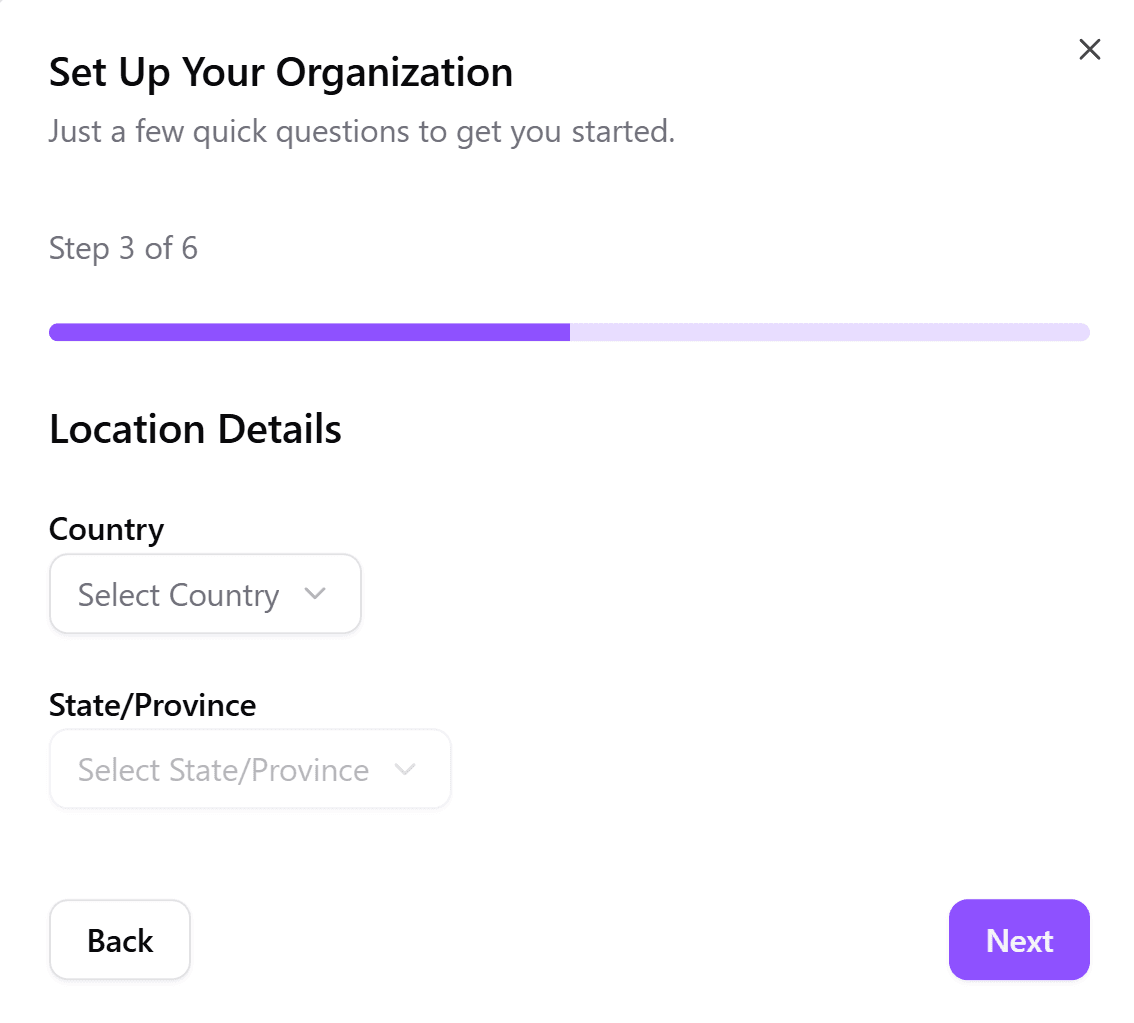
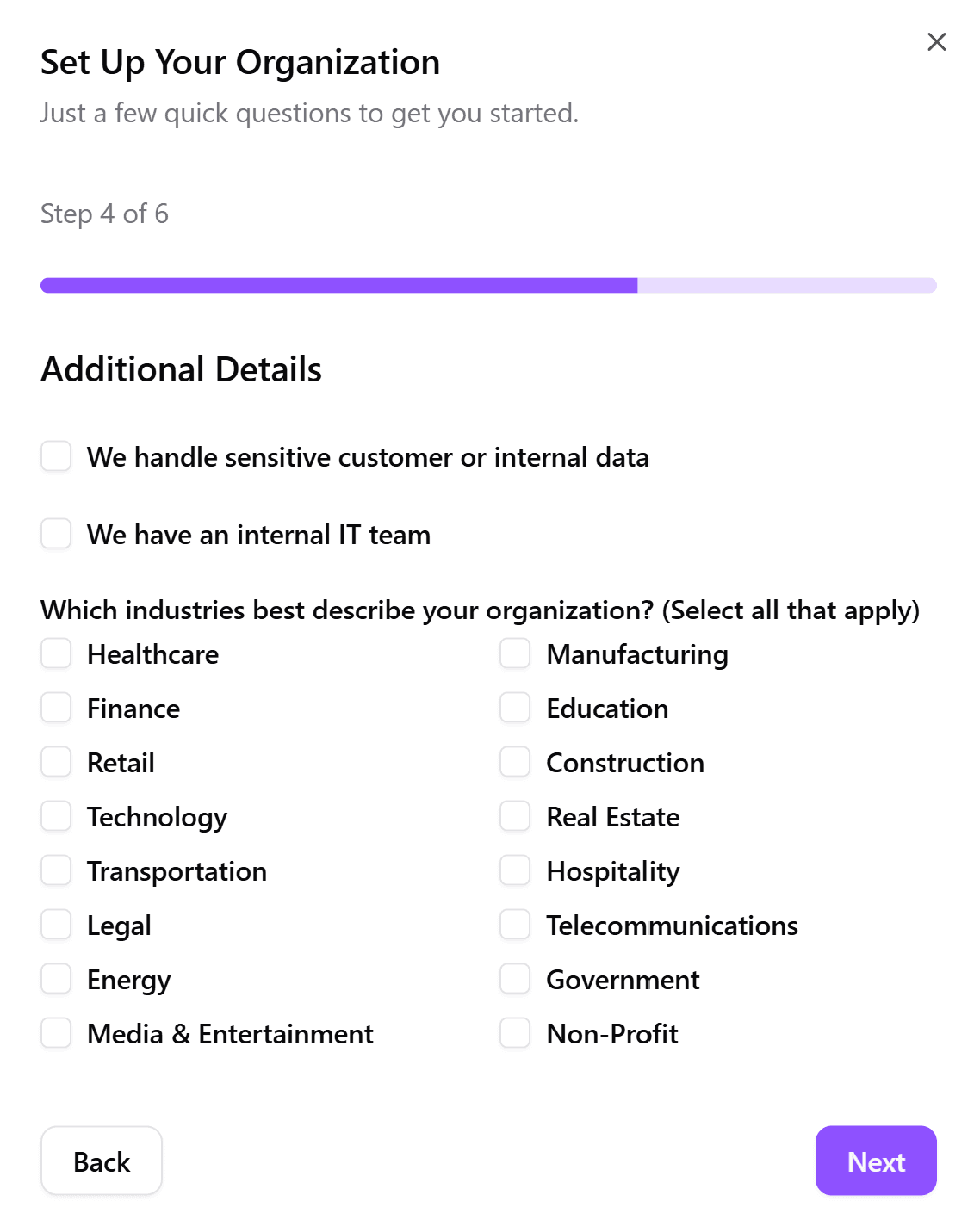
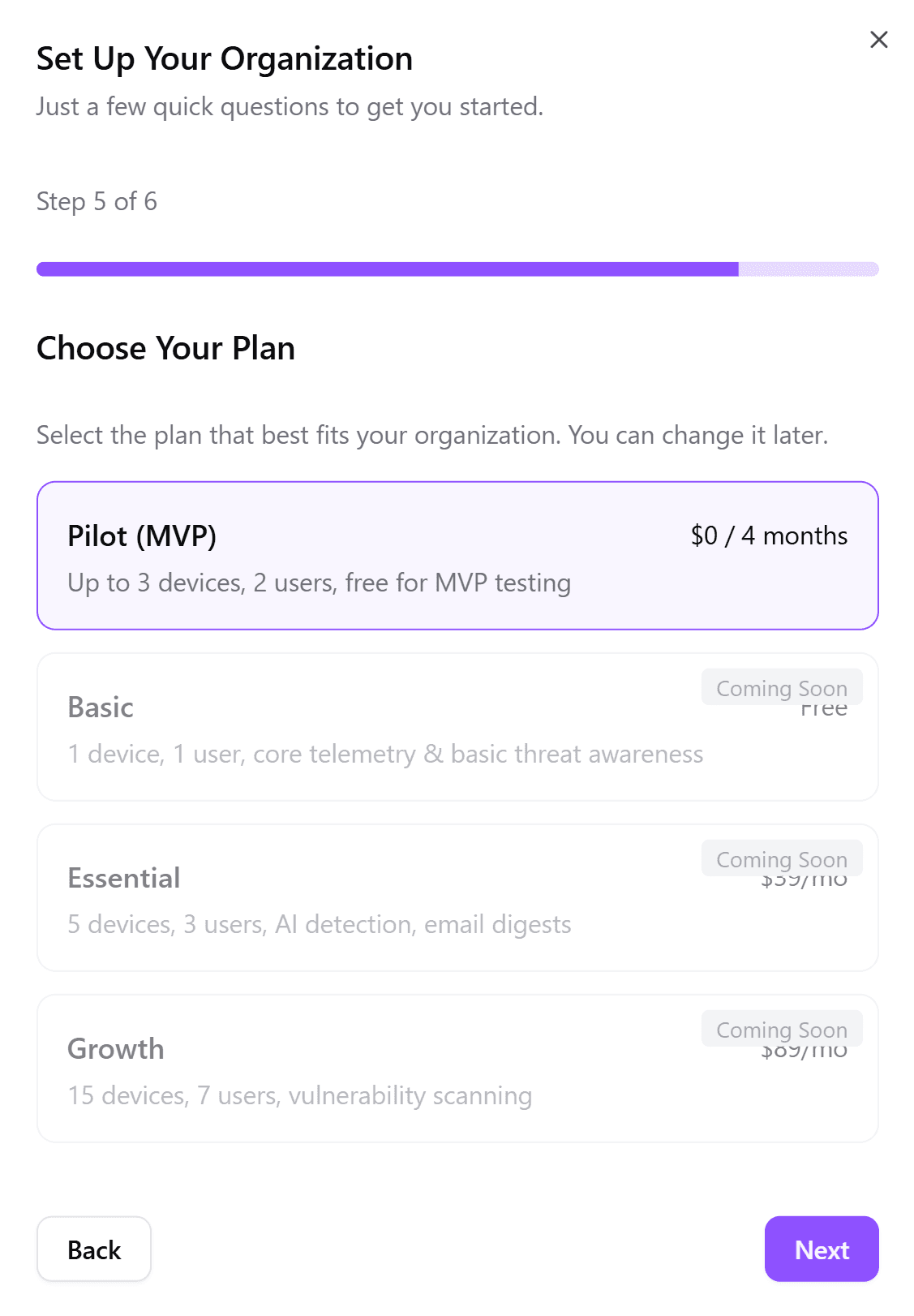
Navigate to cybershieldmaple.com to sign up. After verifying your email, complete your organization profile with details like company name, location, and industry.
Download the Agent Installer
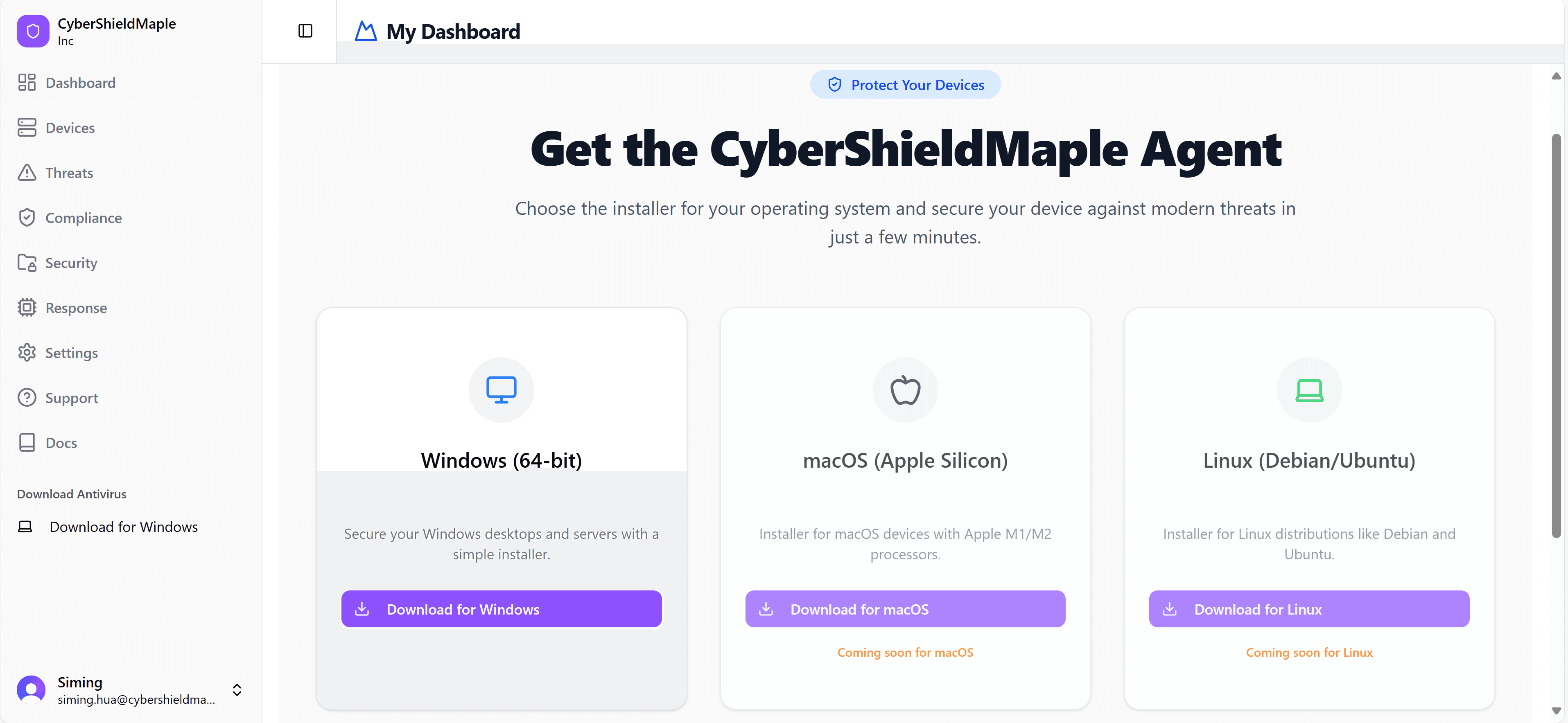
From your CyberShieldMaple dashboard, click 'Download for Windows' to get the installer for the AV Agent. This is the core protection software.
Install the Protection Agent
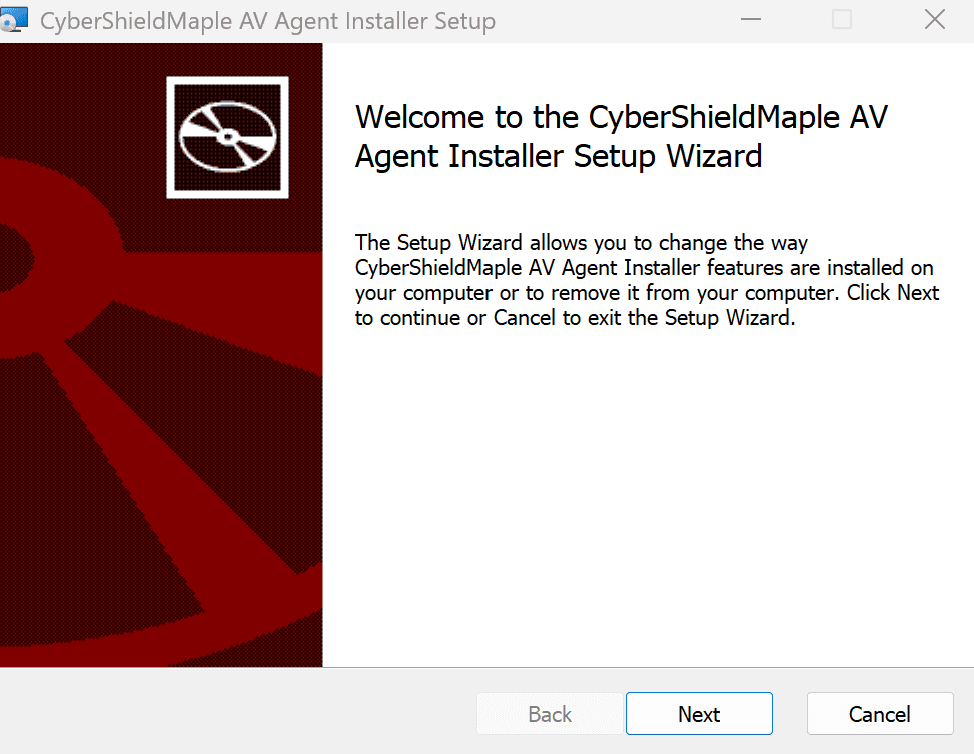
Run the downloaded installer. Follow the on-screen prompts, accept the license agreement, and click 'Install' to place the agent on your device.
Provision Your Device
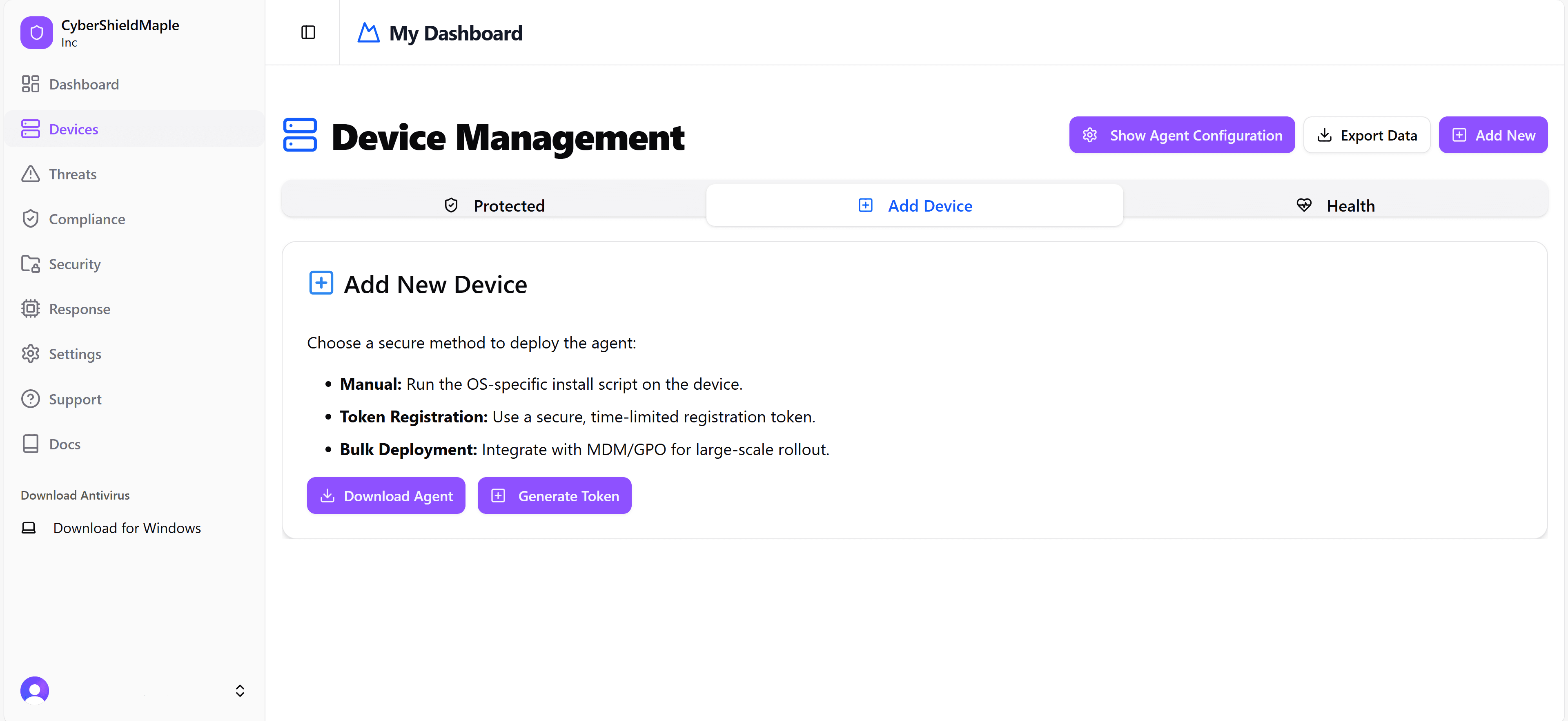
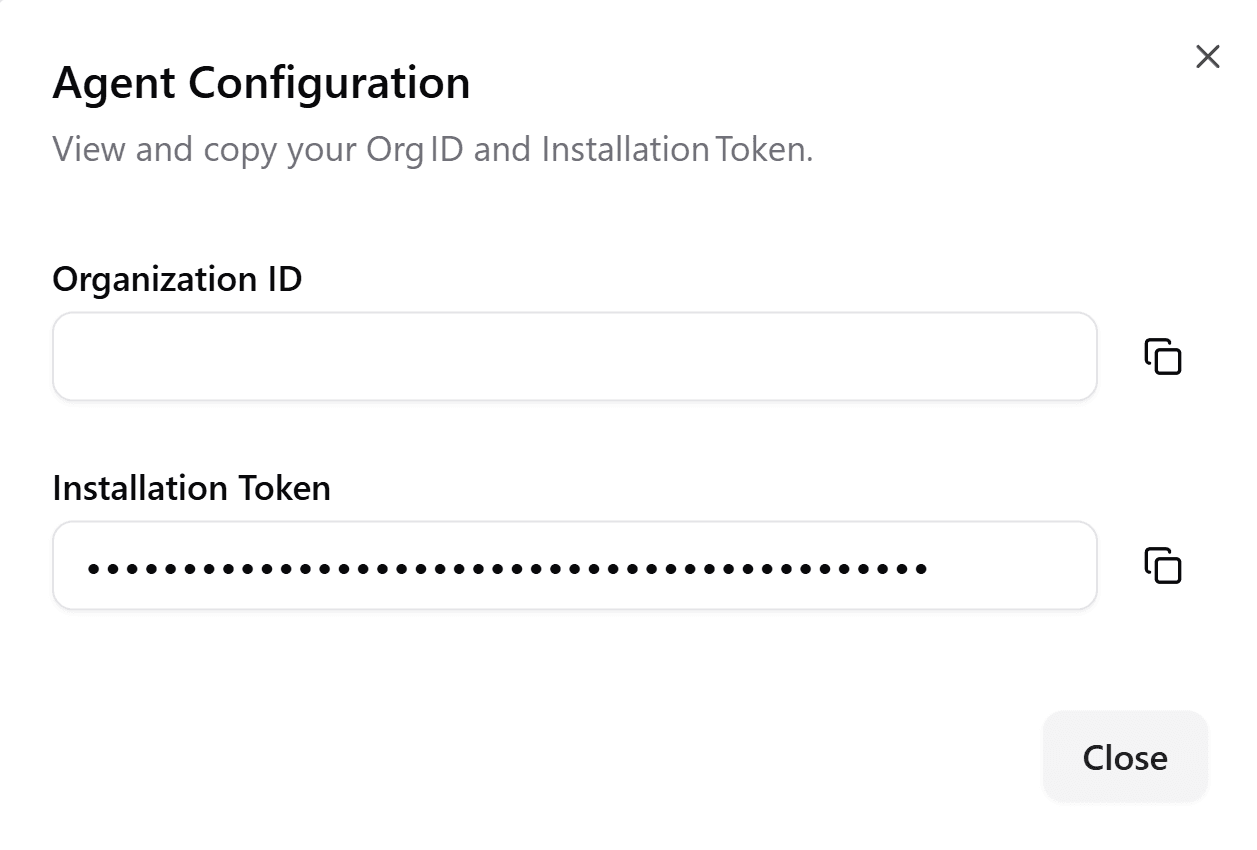
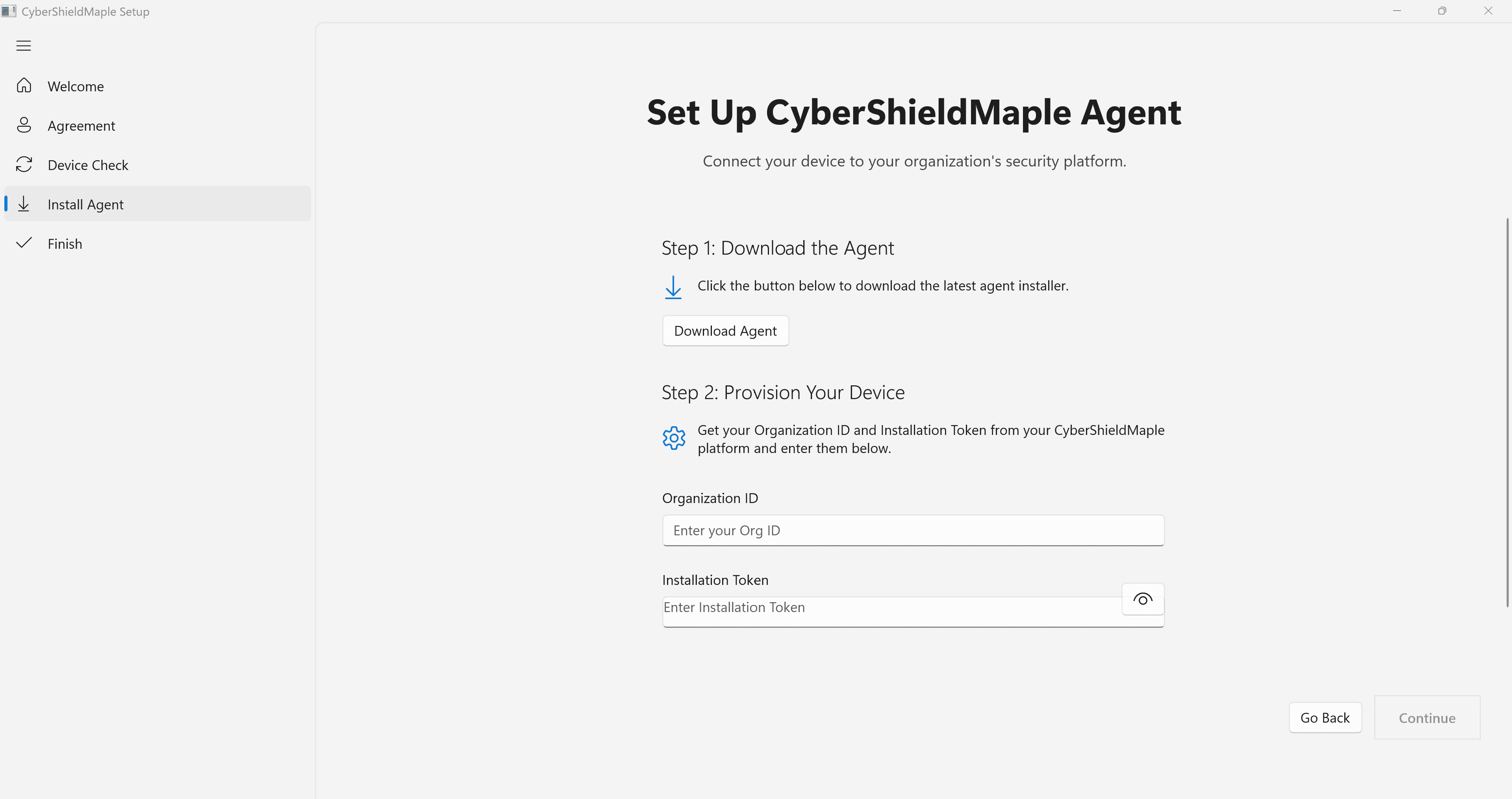
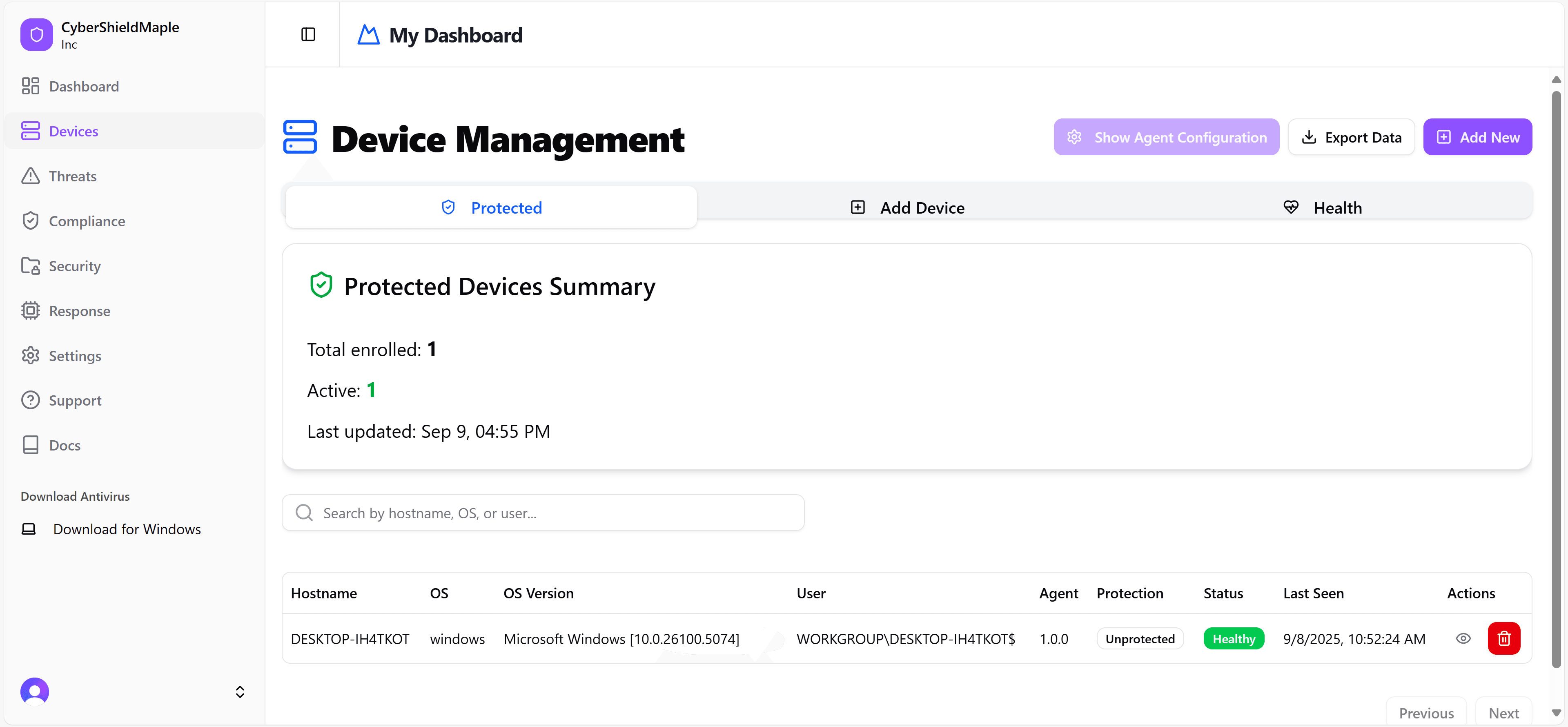
In your dashboard, go to 'Device Management' and 'Add Device'. Generate a new token and copy the Organization ID and Installation Token. Paste these into the agent setup wizard to link the device to your account.
Verify Protection
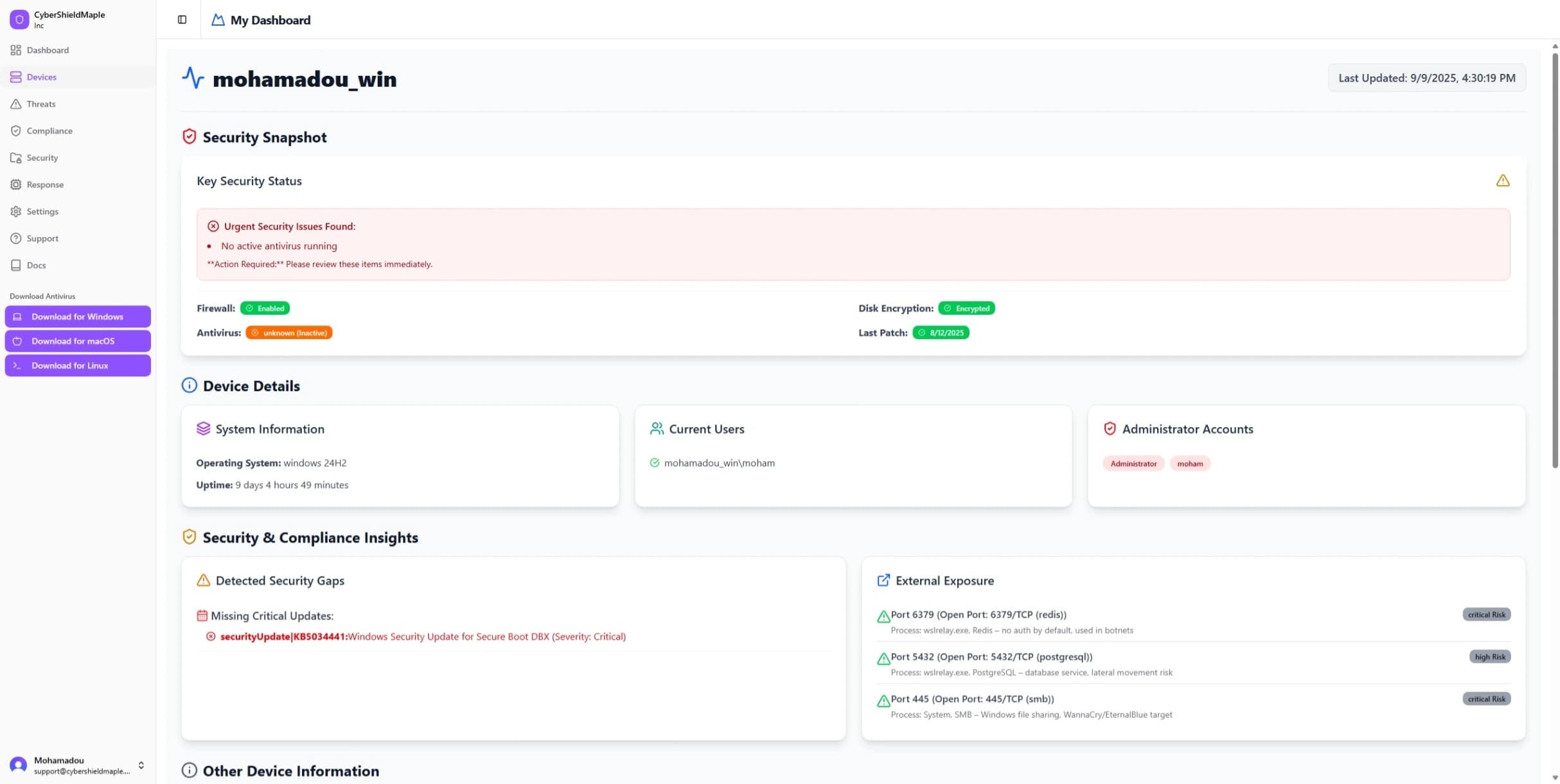
Return to your dashboard's 'Devices' page. Your device will now show as 'Protected' and 'Active', confirming it's fully secured. Click 'View Details' for security insights.
Device Details & Analytics
View detailed security status and analytics for your device by clicking 'View Details' on the Devices page. Monitor real-time protection status, threat history, and system health to ensure ongoing security.